Physical Computing

Ink-Free Painting

Yuxuan Xie


Module 2


Activity Research

Ink-Free Painting is a contactless drawing experience. Its primary audience is children ages 3–6 in preschool and kindergarten. Children ages 6–10 are the secondary audience, with age six at the transition. A caregiver or teacher can help with setup. I researched the audience and similar products, documented our Kinect trials, and built and tested the Arduino controls.


Workshop 1 - Touch Designer

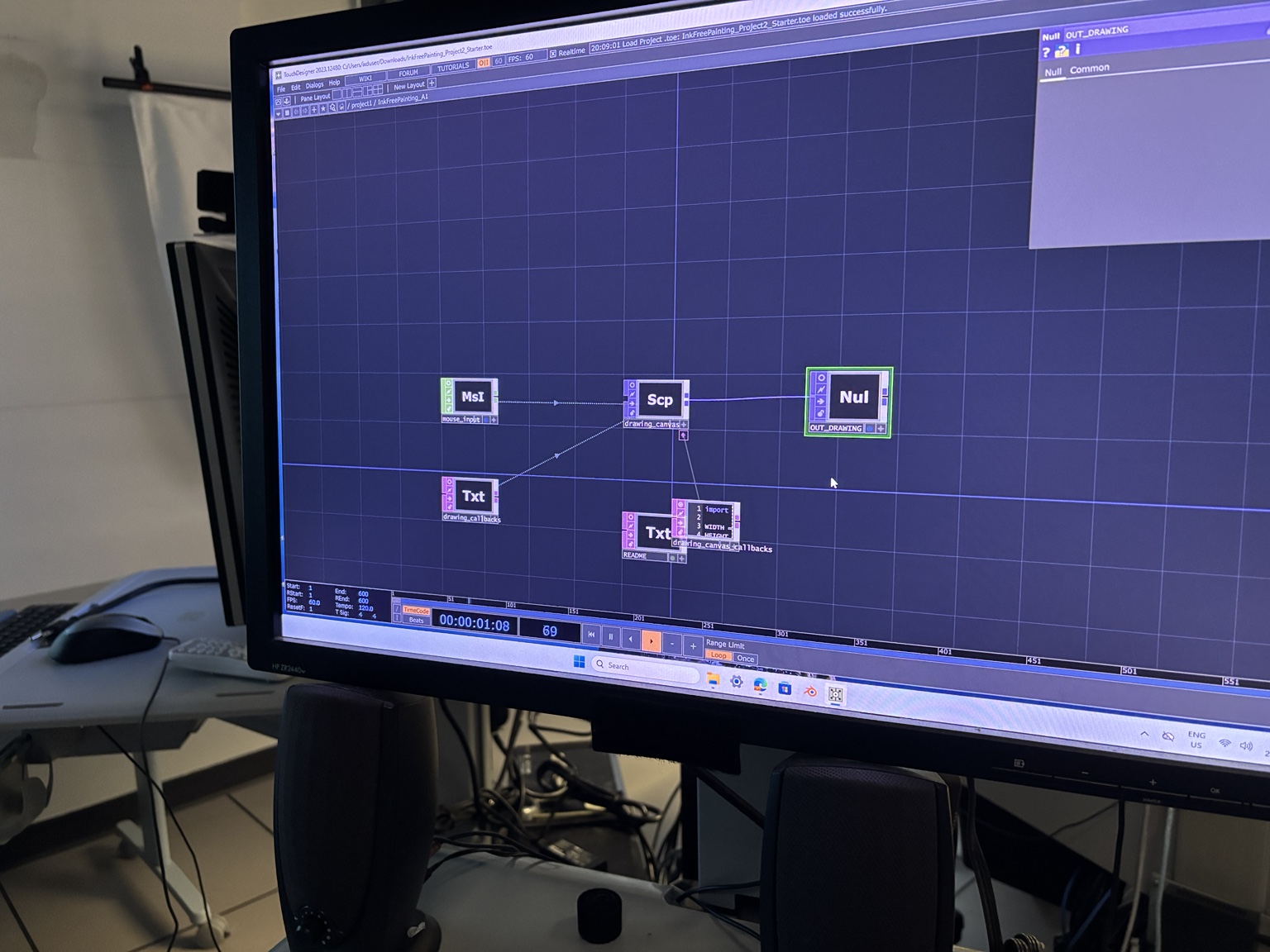
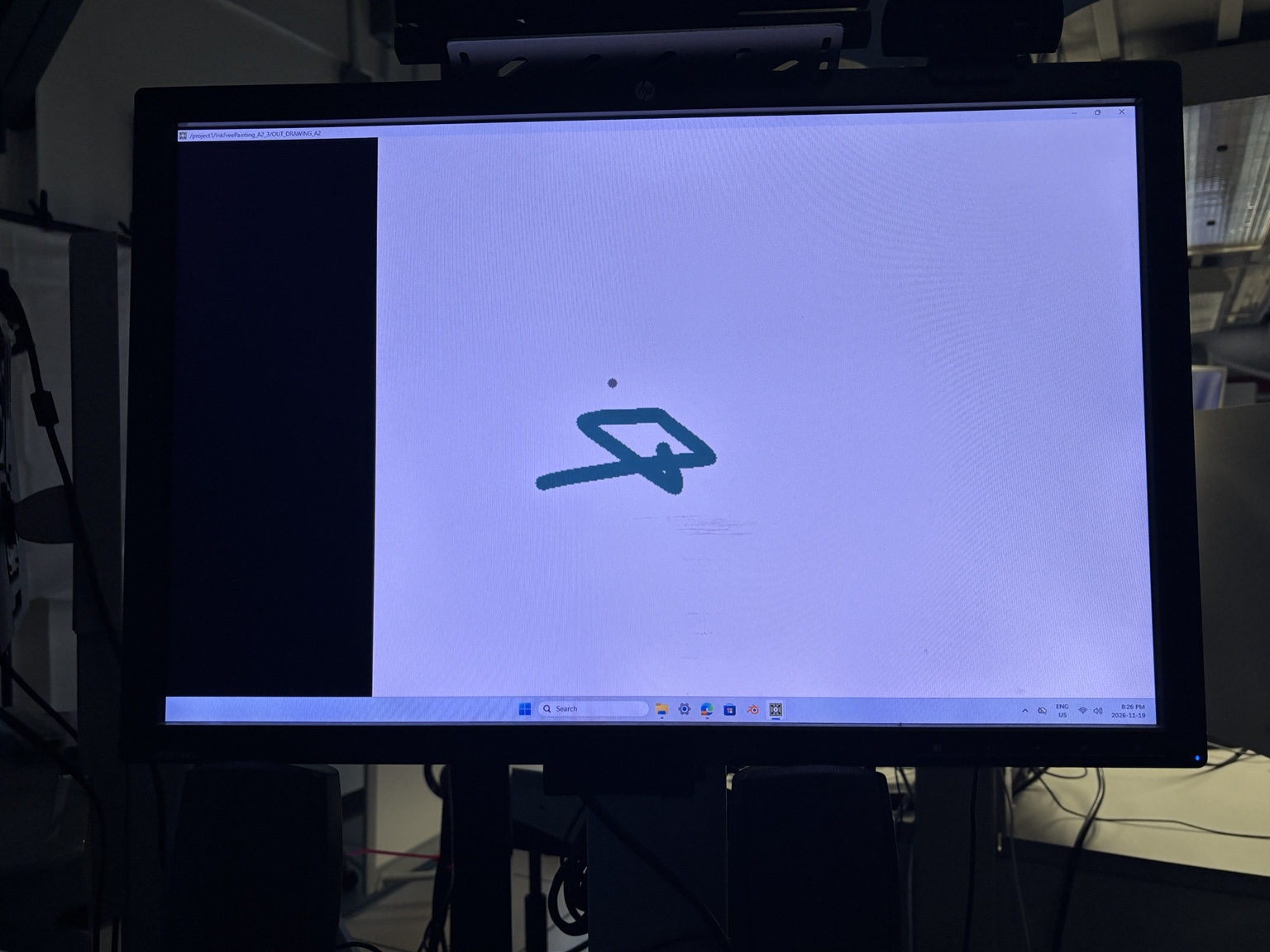
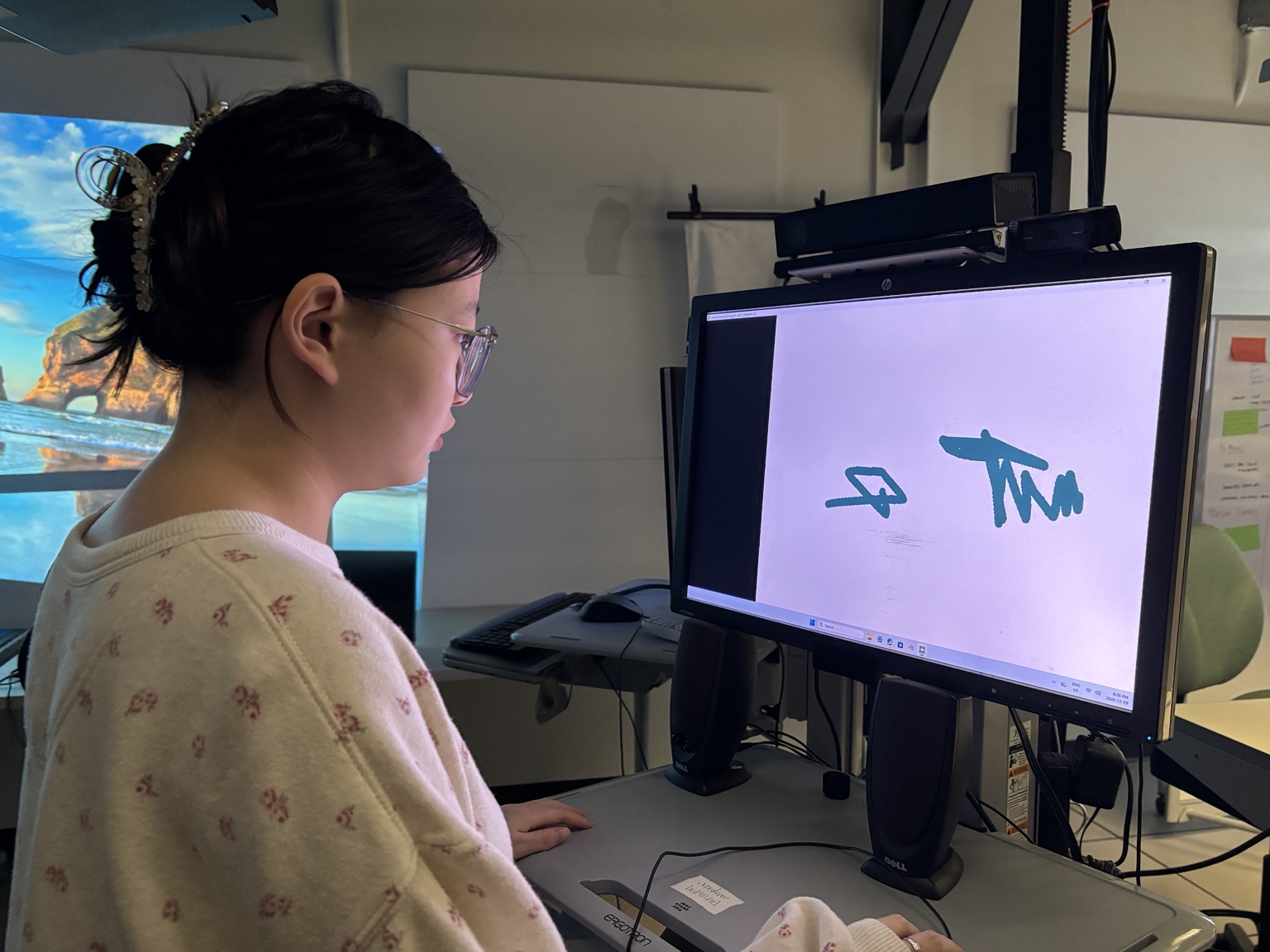
Our team tested how a drawing gesture could be separated from moving without drawing. Select a photo to read Sunny’s original workshop notes.
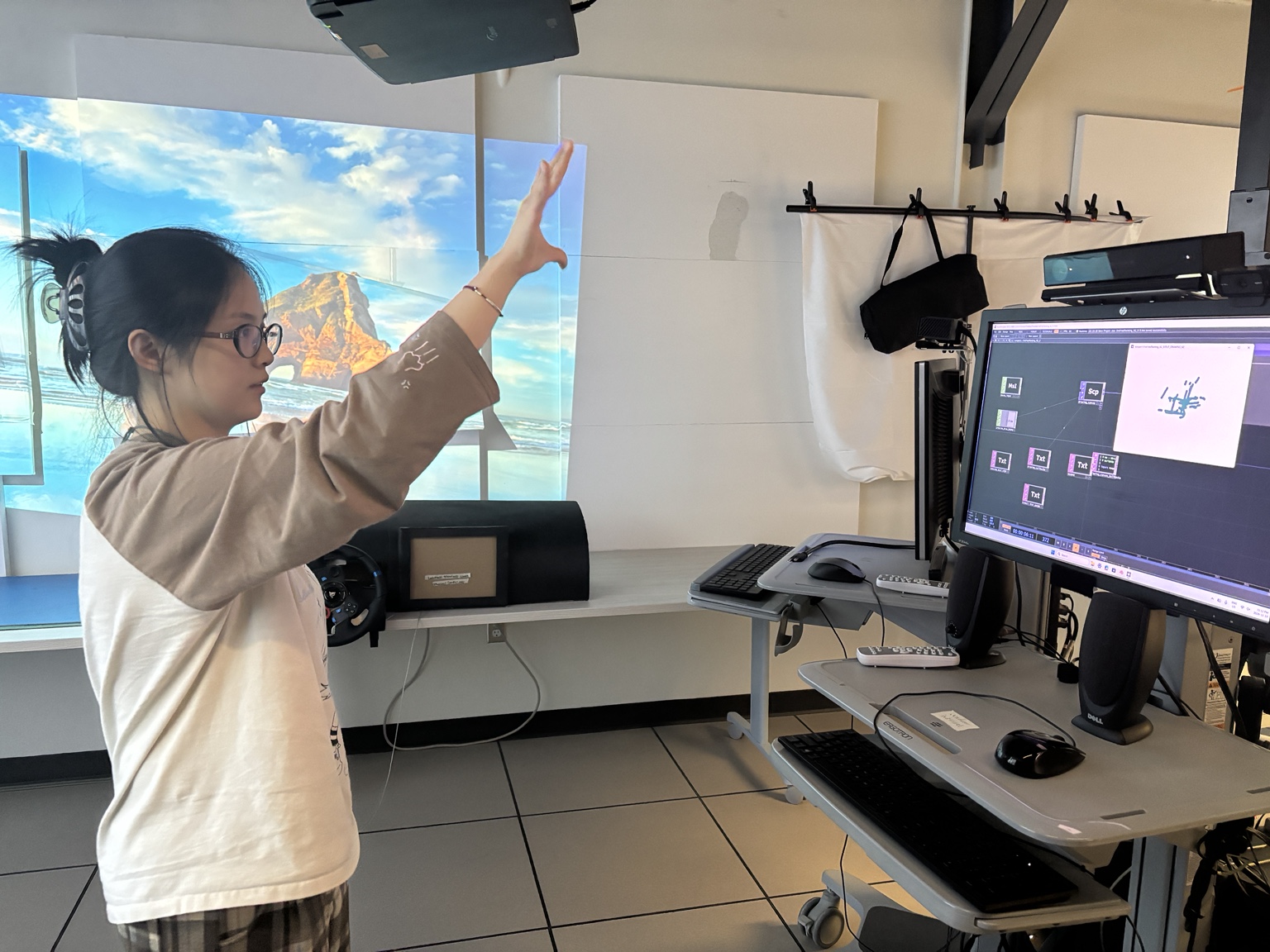
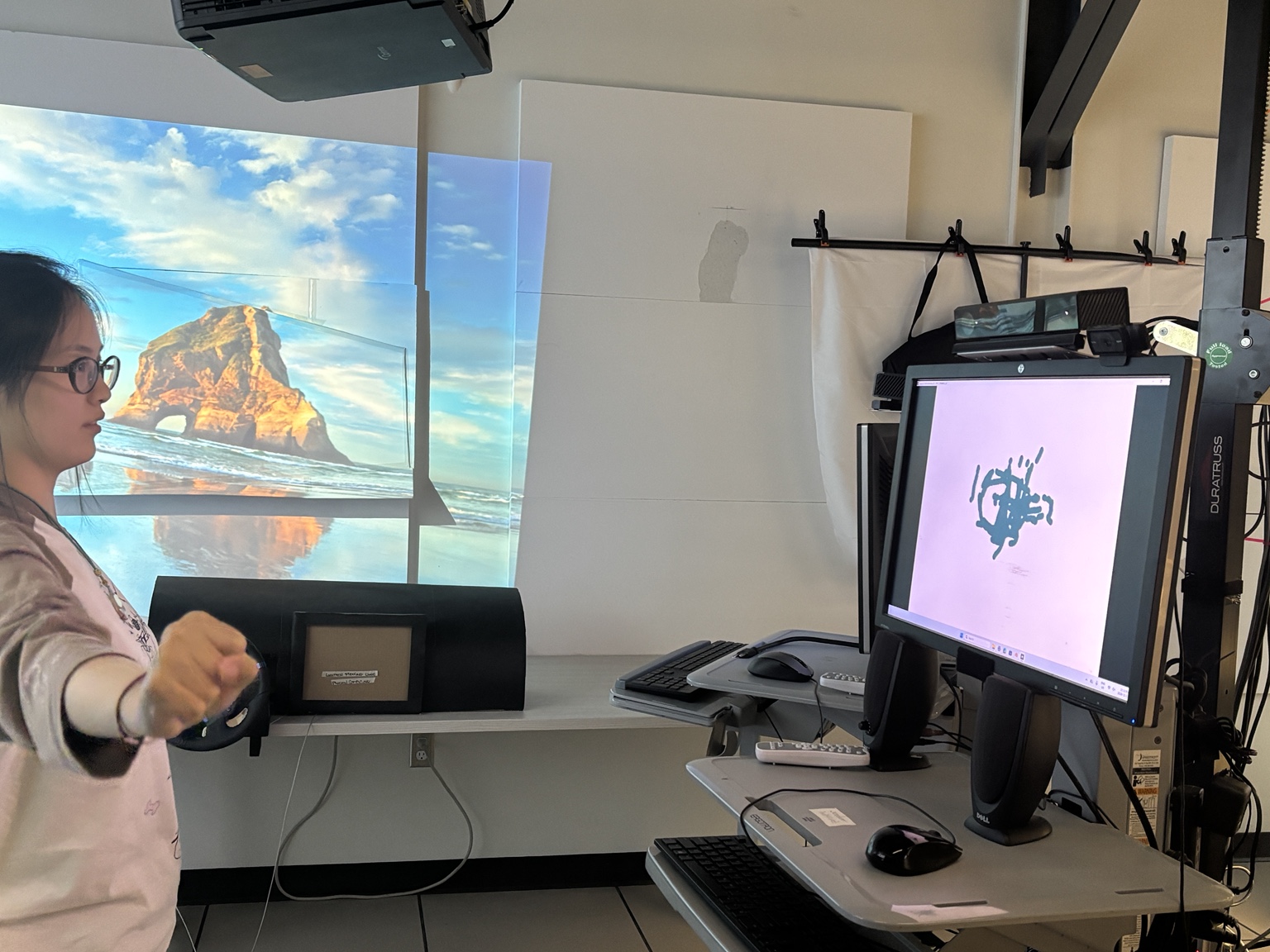
01 · Interaction Rule — The group compared ways to separate drawing from moving. Open hand was selected as the pause state because the change is visible and does not require a physical controller. — Workshop notes by Sunny Yao 02 · Closed Hand to Draw — A closed right hand activates drawing. This created a simple two-state interaction that could be demonstrated before adding more gestures or effects. — Workshop notes by Sunny Yao 03 · Rapid Prototype — The canvas logic was first isolated from the Kinect. Mouse position and button data tested whether the drawing system itself worked before sensor uncertainty was introduced. — Workshop notes by Sunny Yao 04 · First Output — The mouse prototype produced visible points and lines. This confirmed that position and active-state data could be converted into drawing marks. — Workshop notes by Sunny Yao 05 · Workshop Outcome — The working canvas allowed the next test to focus on replacing mouse data with right-hand position and gesture-state channels from Kinect v2. — Workshop notes by Sunny Yao

Workshop 2 - Arduino

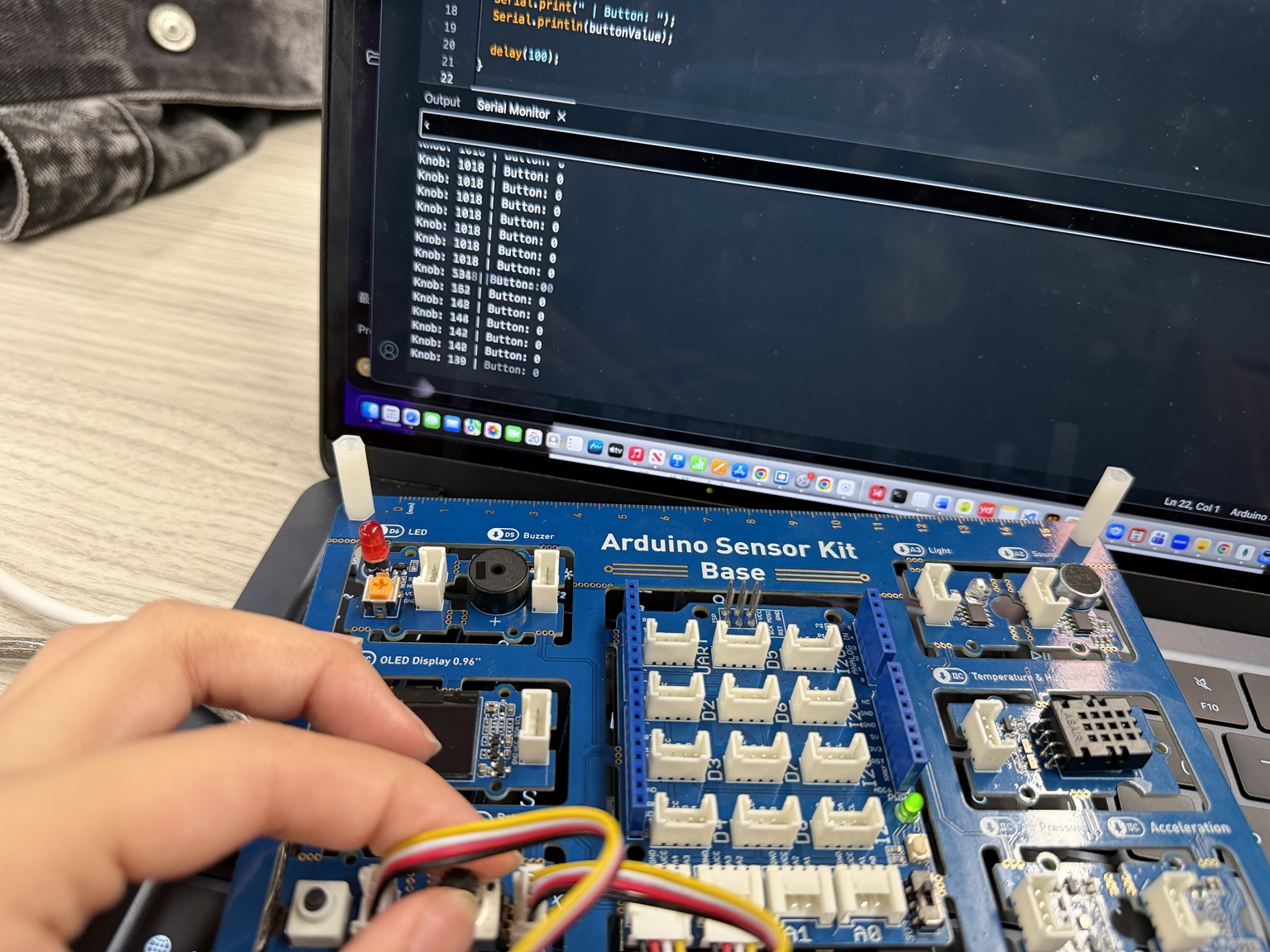
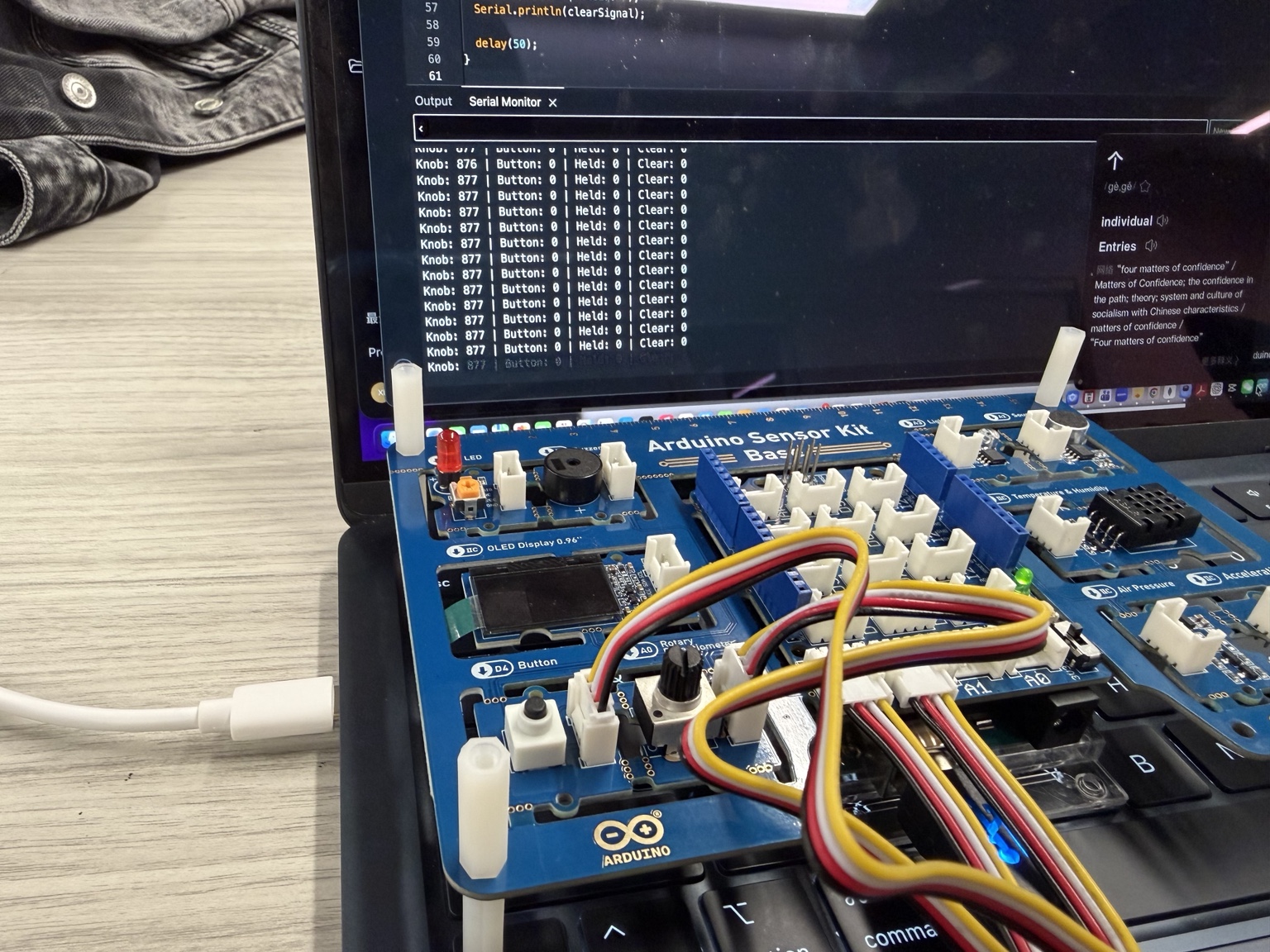
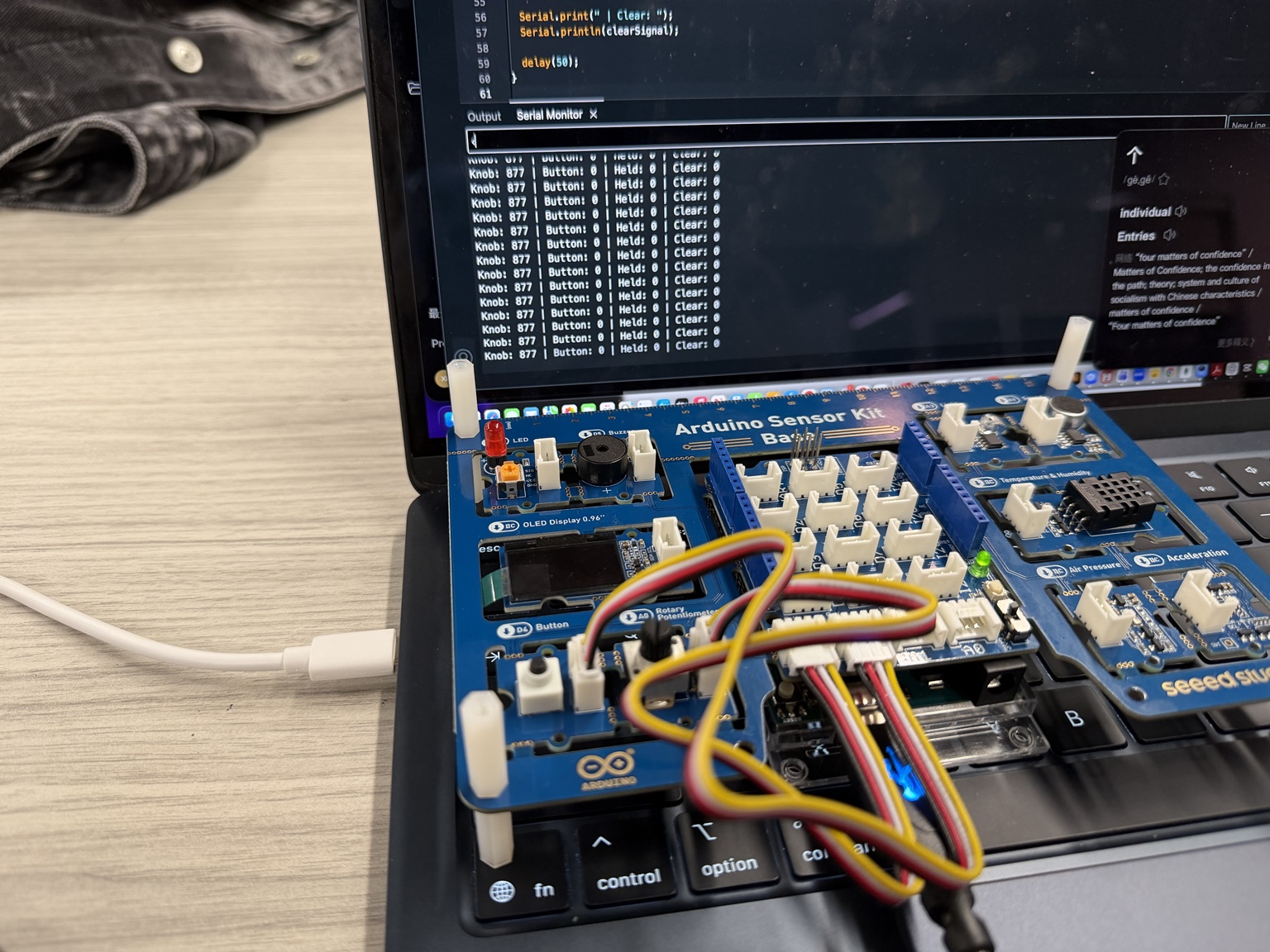
I tested a rotary knob and a push button as separate physical controls. I first used the Arduino Serial Monitor to check each input.
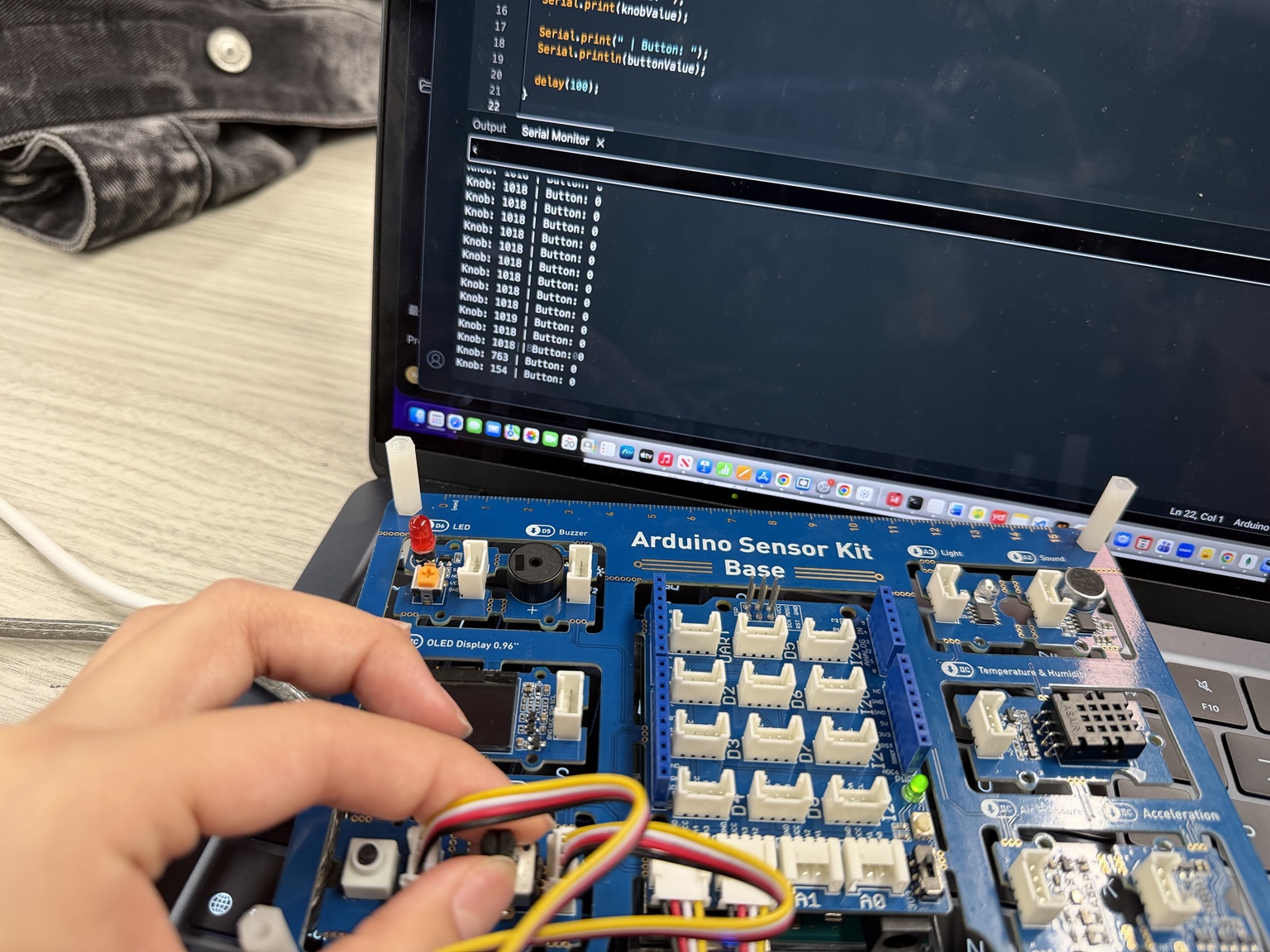
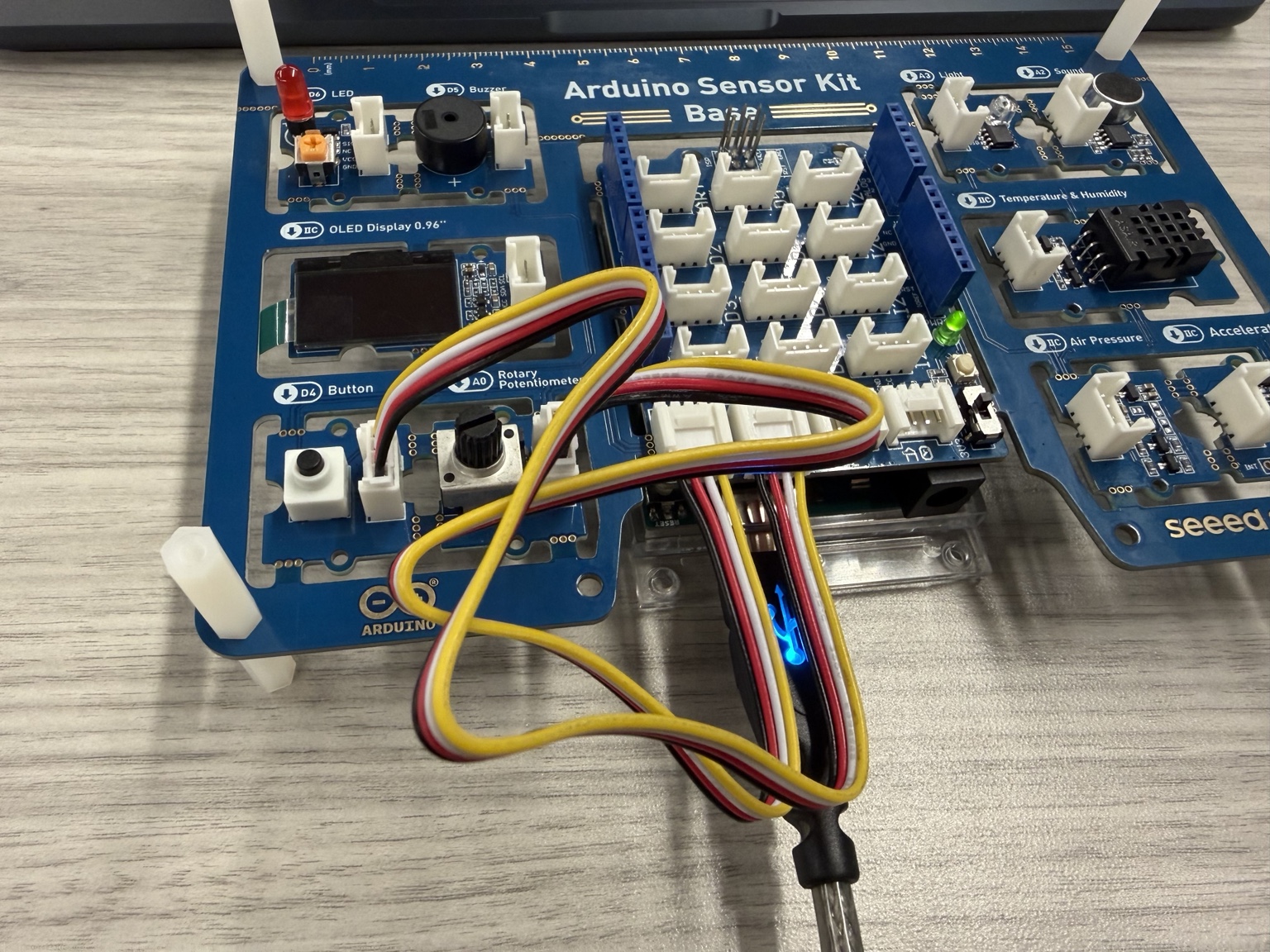
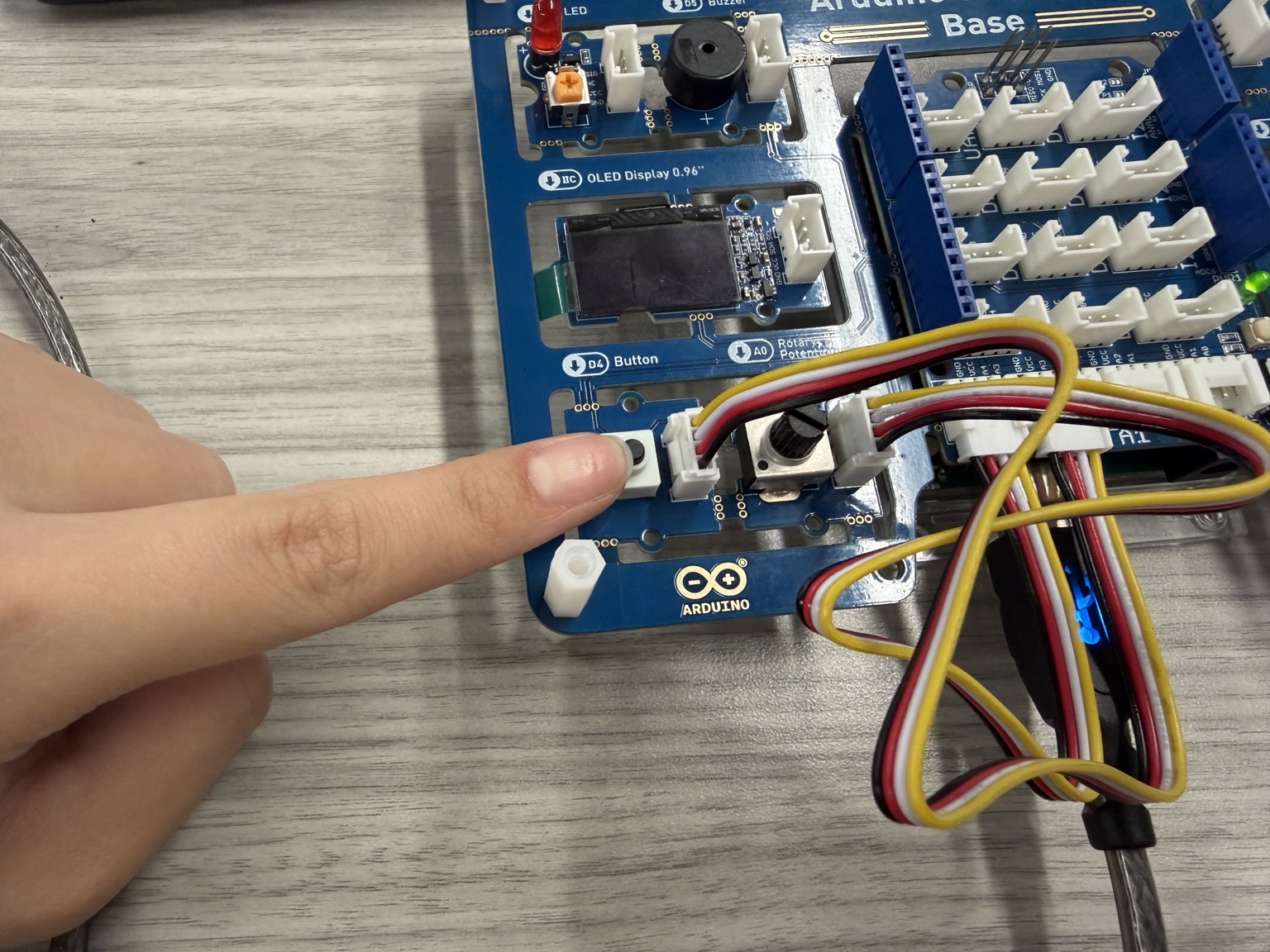
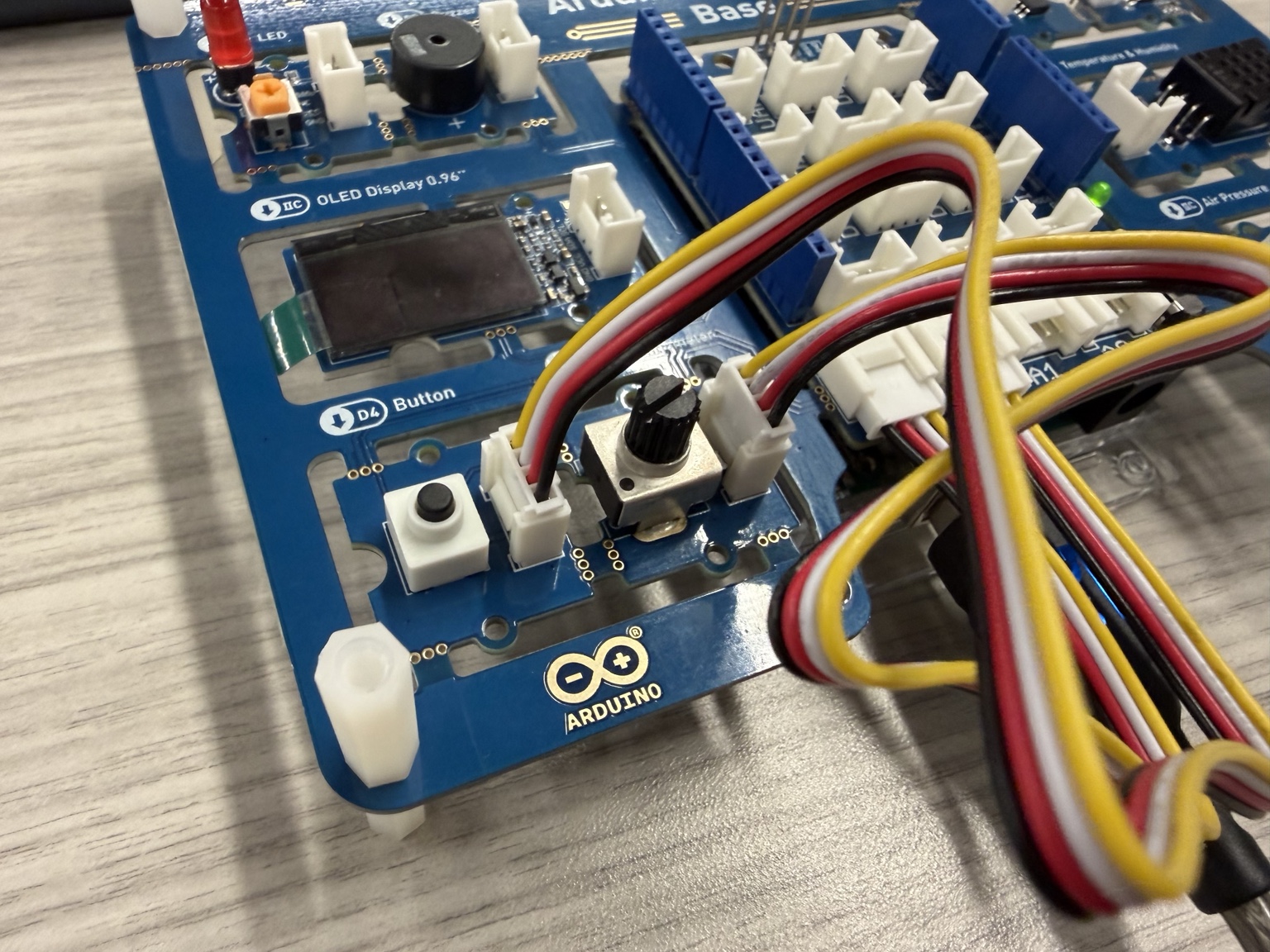
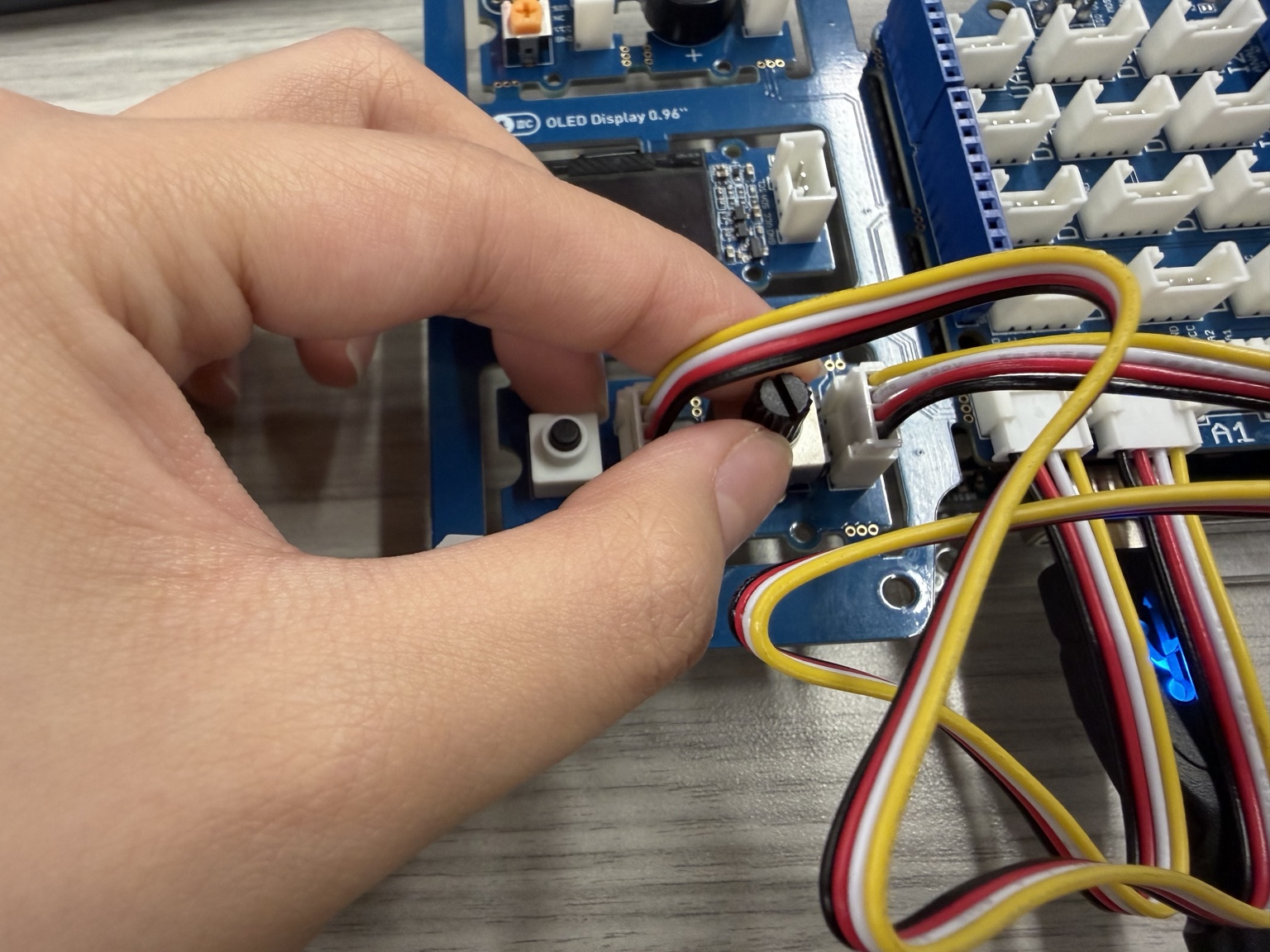
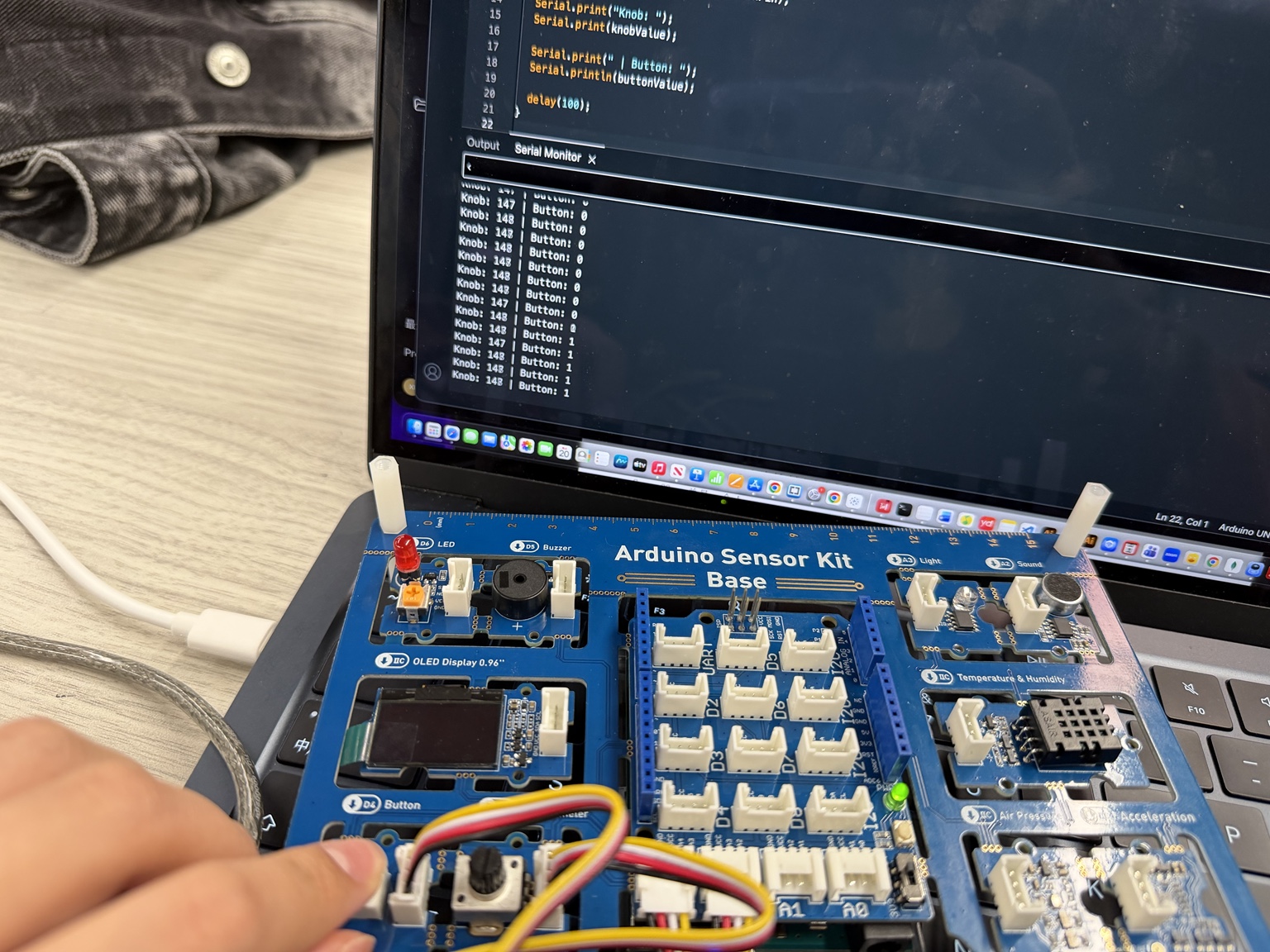
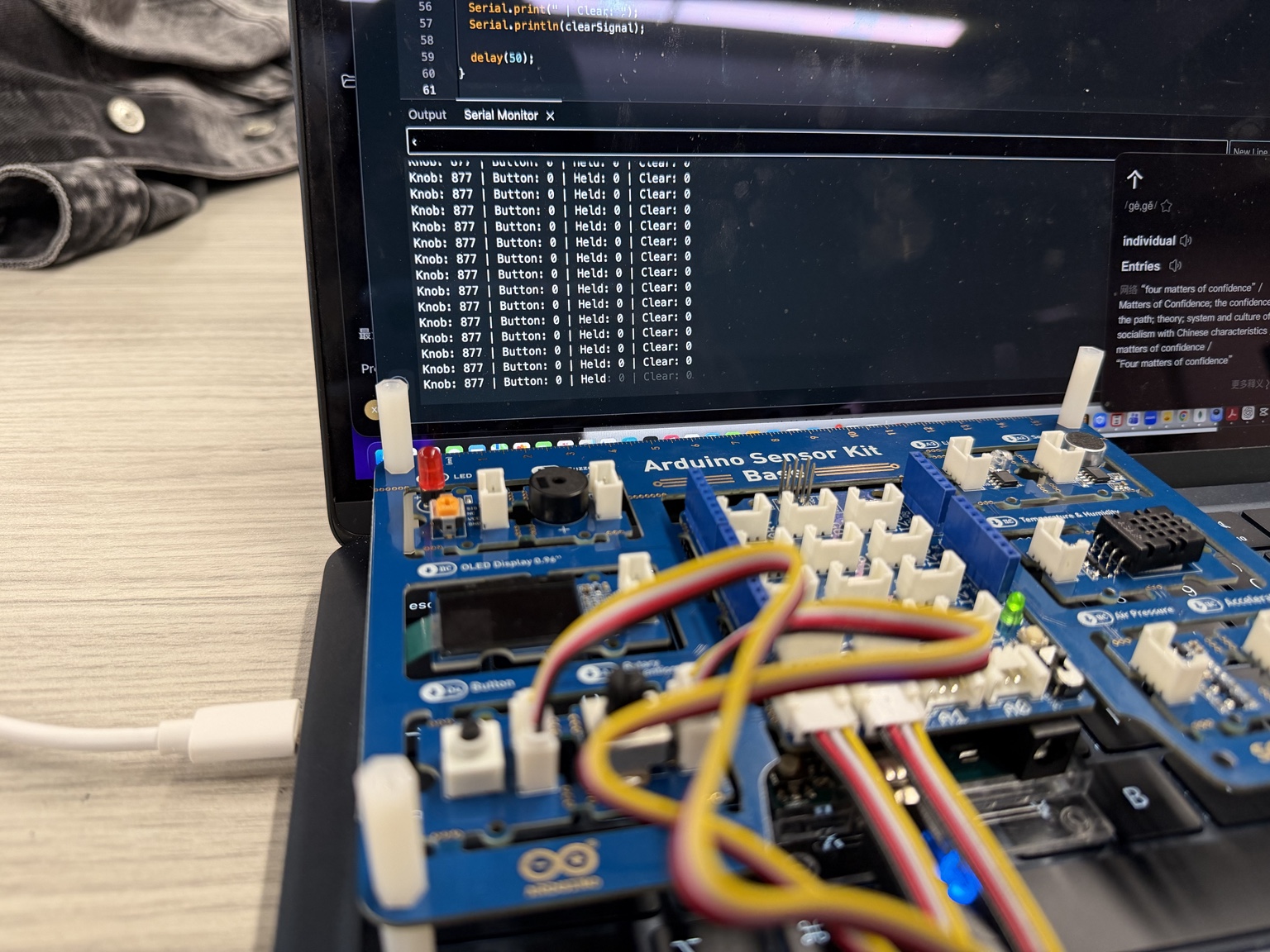
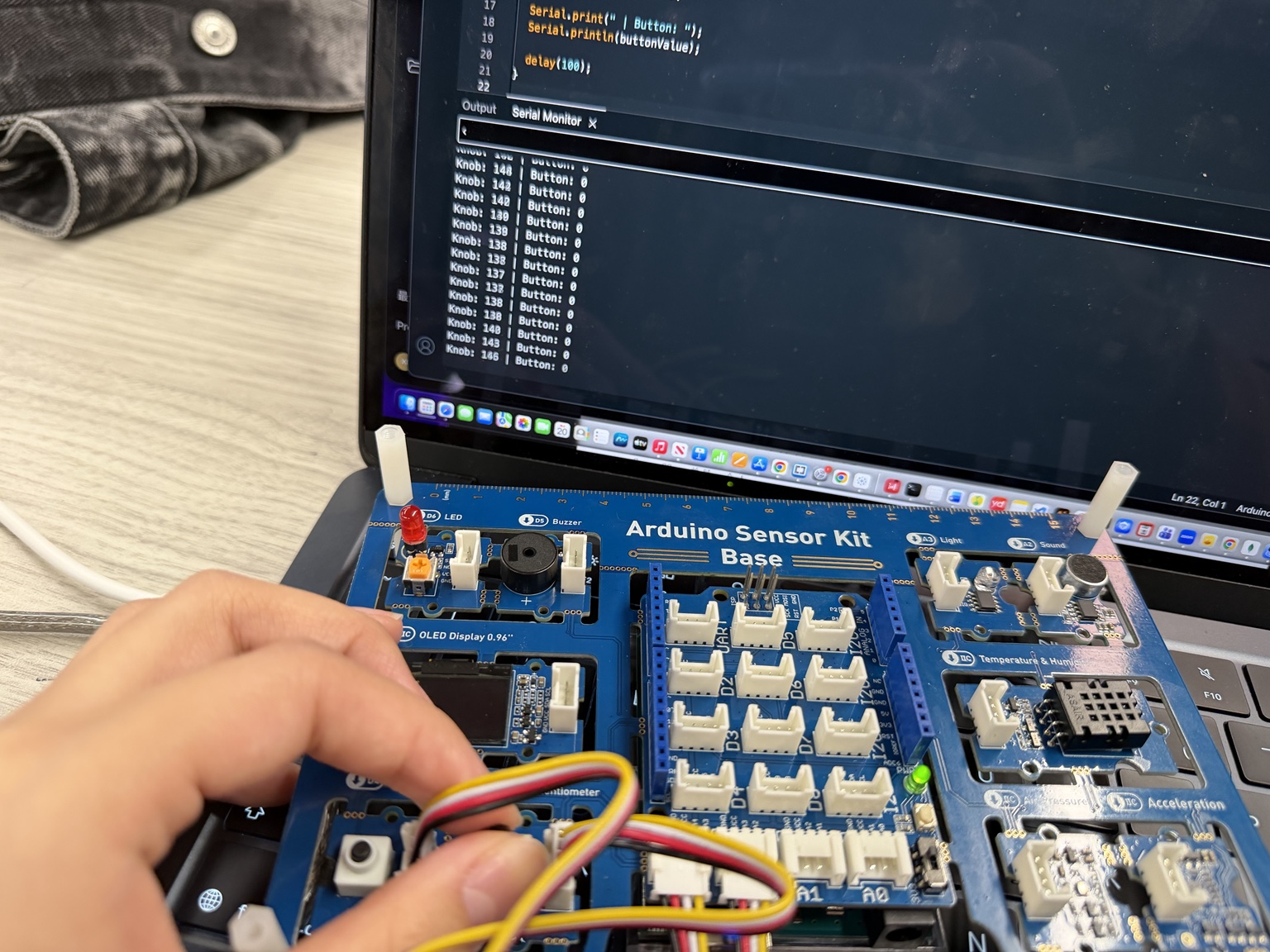
Arduino Sensor Kit — The rotary potentiometer and push button are the two physical inputs for this experiment. Turning the knob — The serial readings change as the knob turns while the button stays at zero. Pressing the button — I checked the push button separately before using it as a reset control. Checking connections — I checked the physical connections against the sketch and corrected the potentiometer to A0 and the button to D4. Testing the serial output — The expanded debug output reports knob, button, held and clear values separately. The pictured readings show the idle state.

Activity 1

I wired and programmed an Arduino knob and push button. When the knob readings were inconsistent, I compared the wiring with the code, corrected both connections, and used the Serial Monitor to check the inputs.

Initial wiring — I first plugged the potentiometer into A3 and the button into A2. This did not match the pin assignments in my sketch. Testing the potentiometer — Turning the knob changes the analog reading. I chose a knob to allow gradual adjustment of brush size. Testing the push button — I tested the button as a separate digital input before adding the long-press rule. Correcting the wiring — The sketch expected A0 for the potentiometer and D4 for the button. After correcting the wiring, I repeated the knob test and the readings responded normally. Adding a deliberate reset — I programmed a two-second hold to send a clear signal. That gives the reset a deliberate action because clearing removes the current artwork.

Activity 2

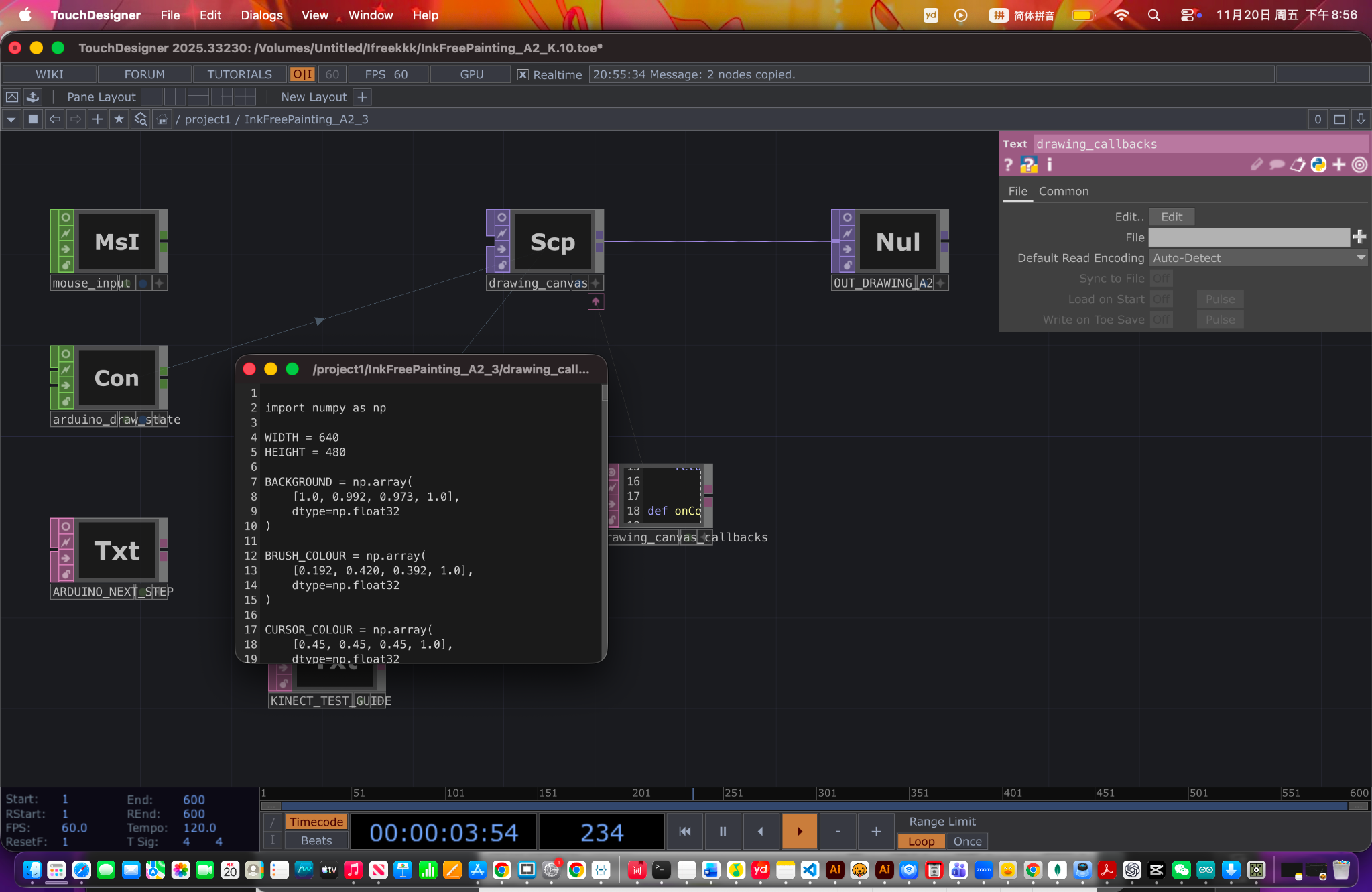
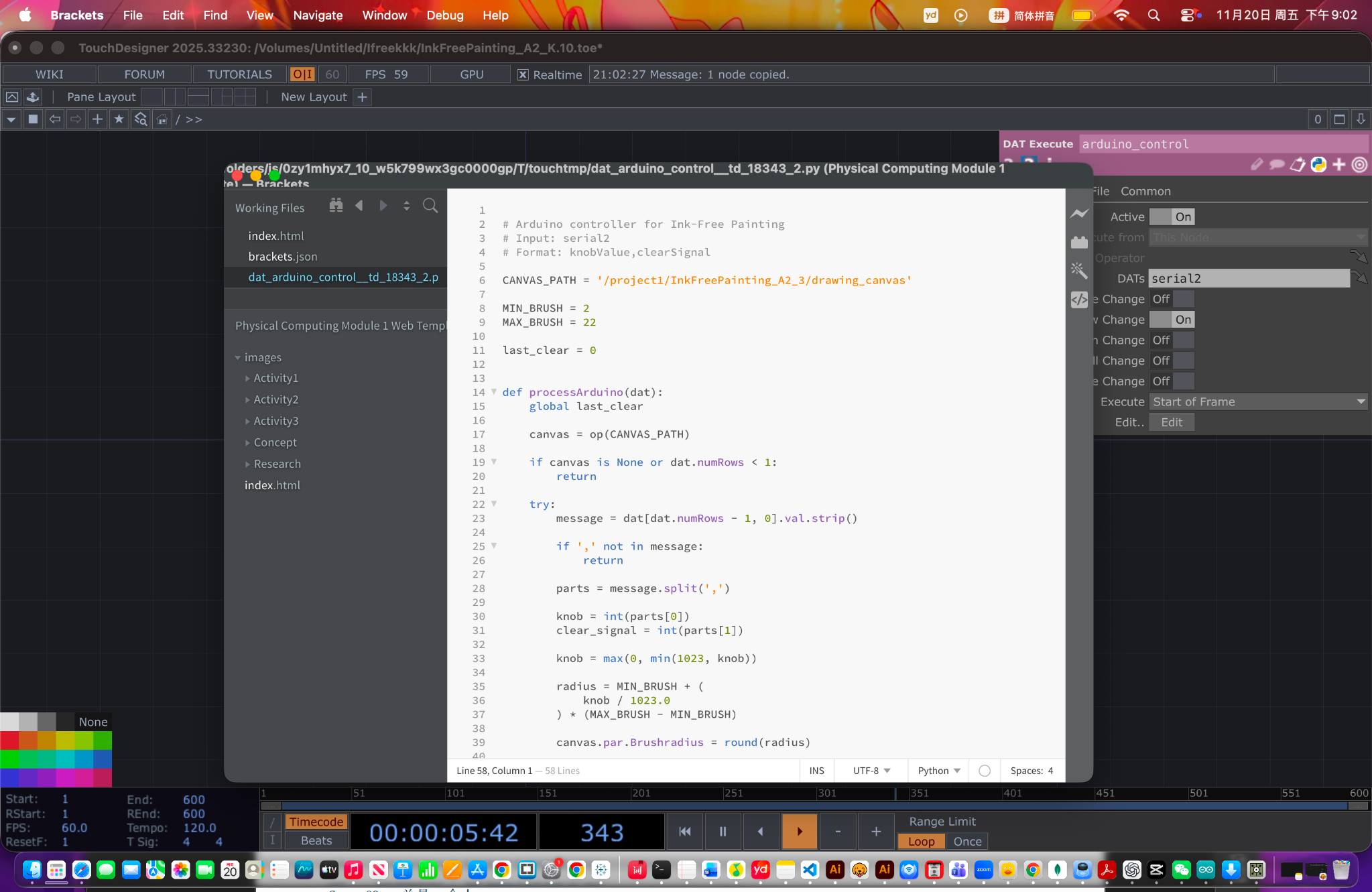
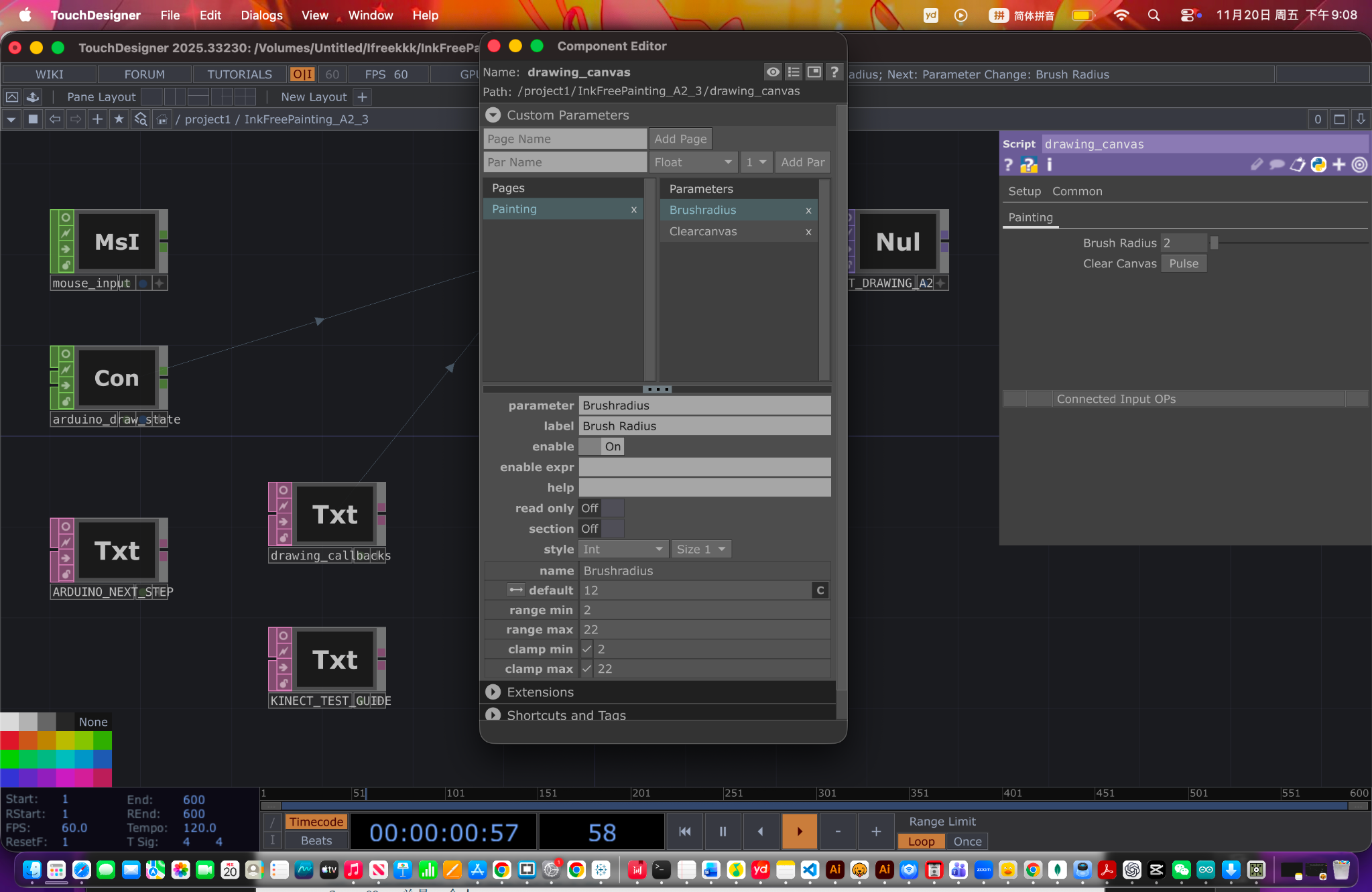
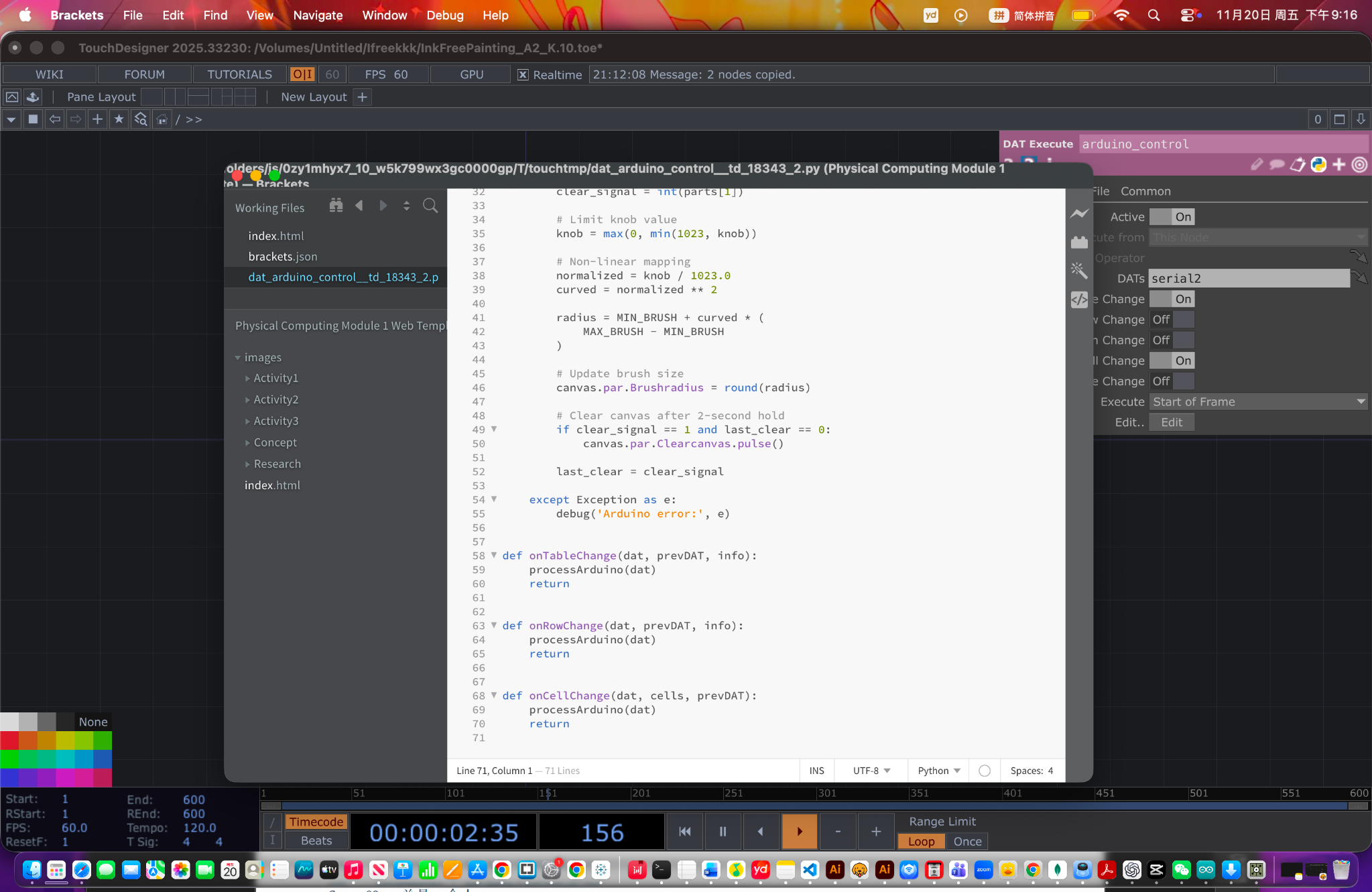
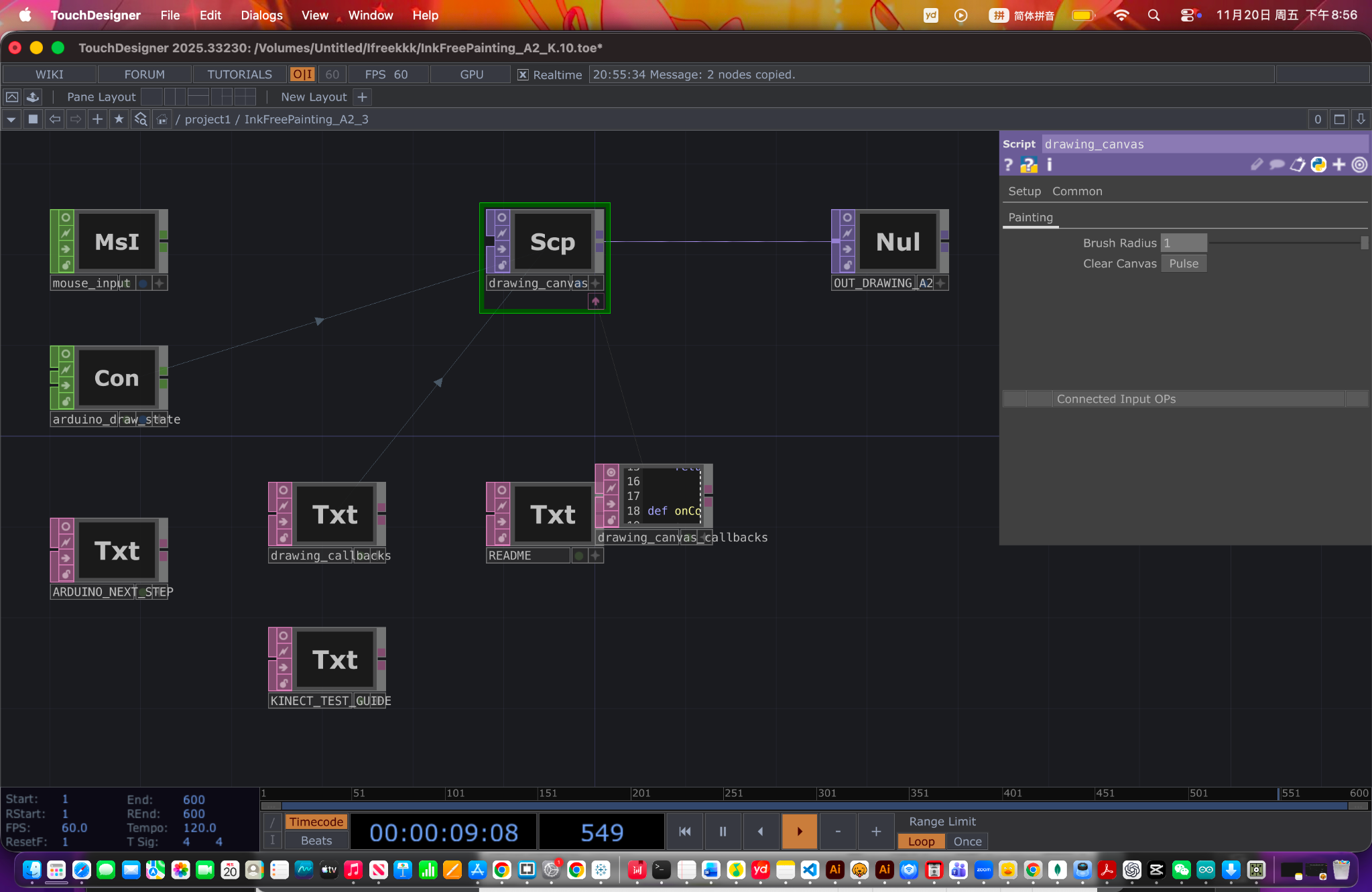
I added an Arduino serial input to TouchDesigner and tested the incoming brush-size and reset values. The signals appeared in TouchDesigner. Changes to brush width and clearing on the live Kinect canvas remained unverified.

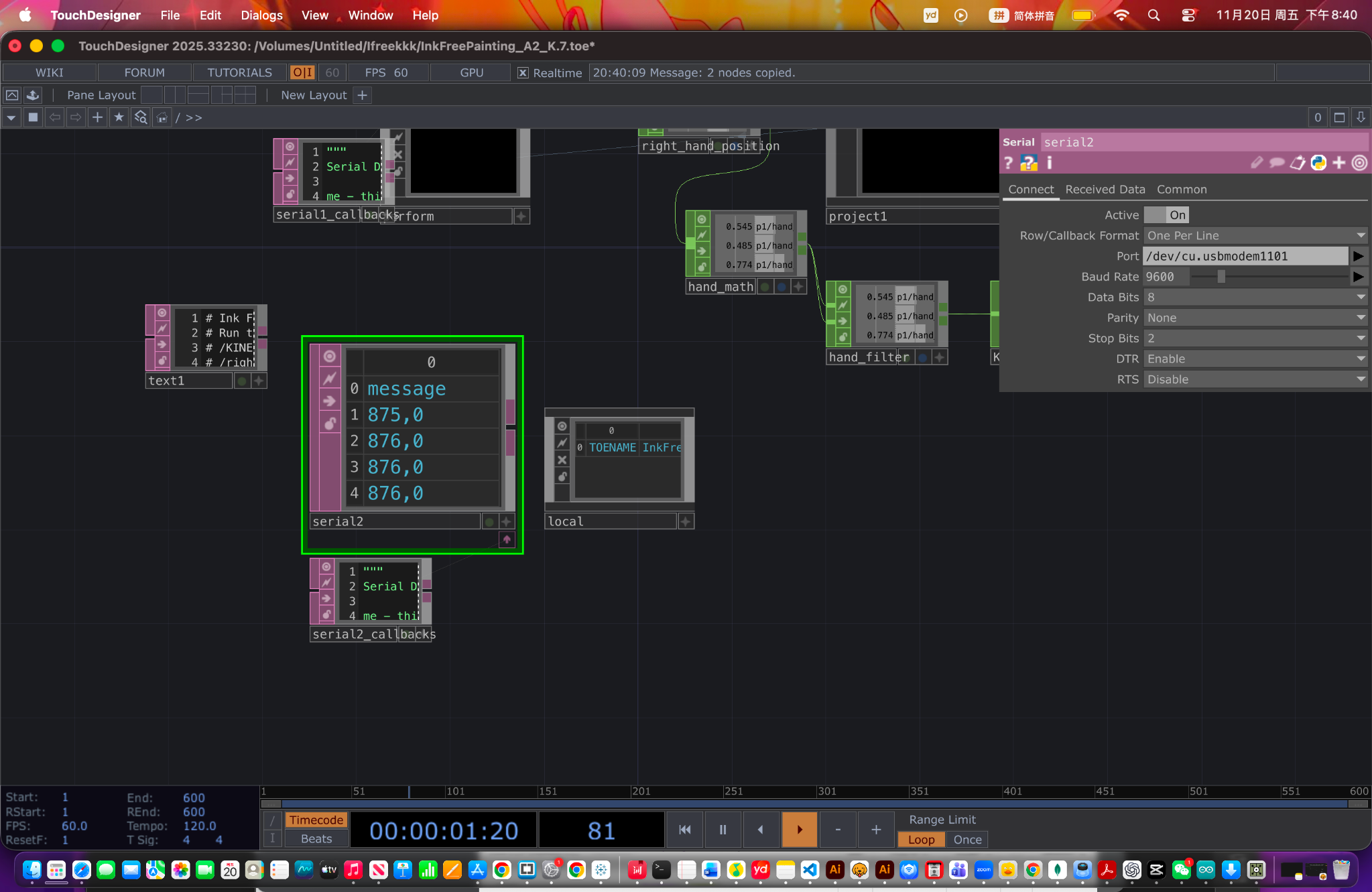
Receiving serial data — I configured the Serial DAT to receive comma-separated Arduino values at 9600 baud. Adding canvas controls — I worked in the existing drawing network and set up Brush Radius and Clear Canvas as controls for the Arduino input. Mapping the brush radius — My script reads the knob value and maps the 0–1023 input to a brush radius of 2–22. Checking the parameter range — I set a 2–22 range and checked how knob movement changed the brush-size value in TouchDesigner. Testing the reset signal — I held the button for two seconds and observed the reset signal. The callback was set up to pulse Clear Canvas when the signal changed to 1.

Additional Research

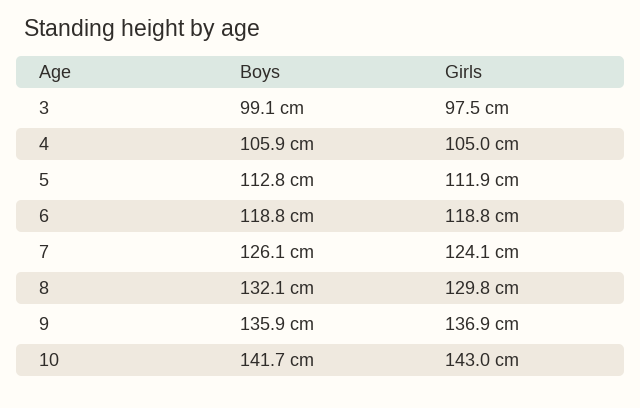
I researched standing heights and examples of touchless play to understand where to place the projection and sensor. The height comparison helped Sunny plan a low-reach Kinect check by crouching about two metres from the sensor. Comfortable arm reach still needs to be tested with children.

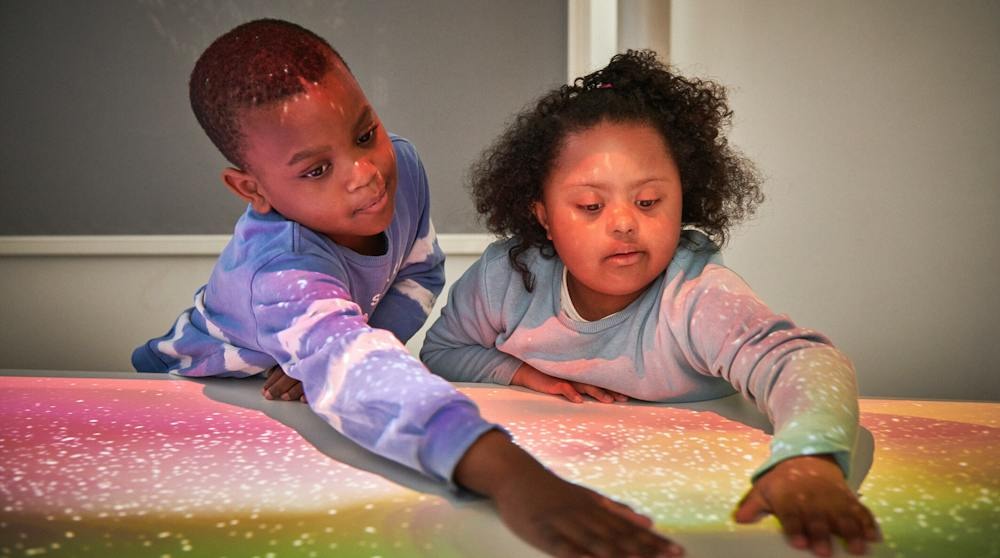
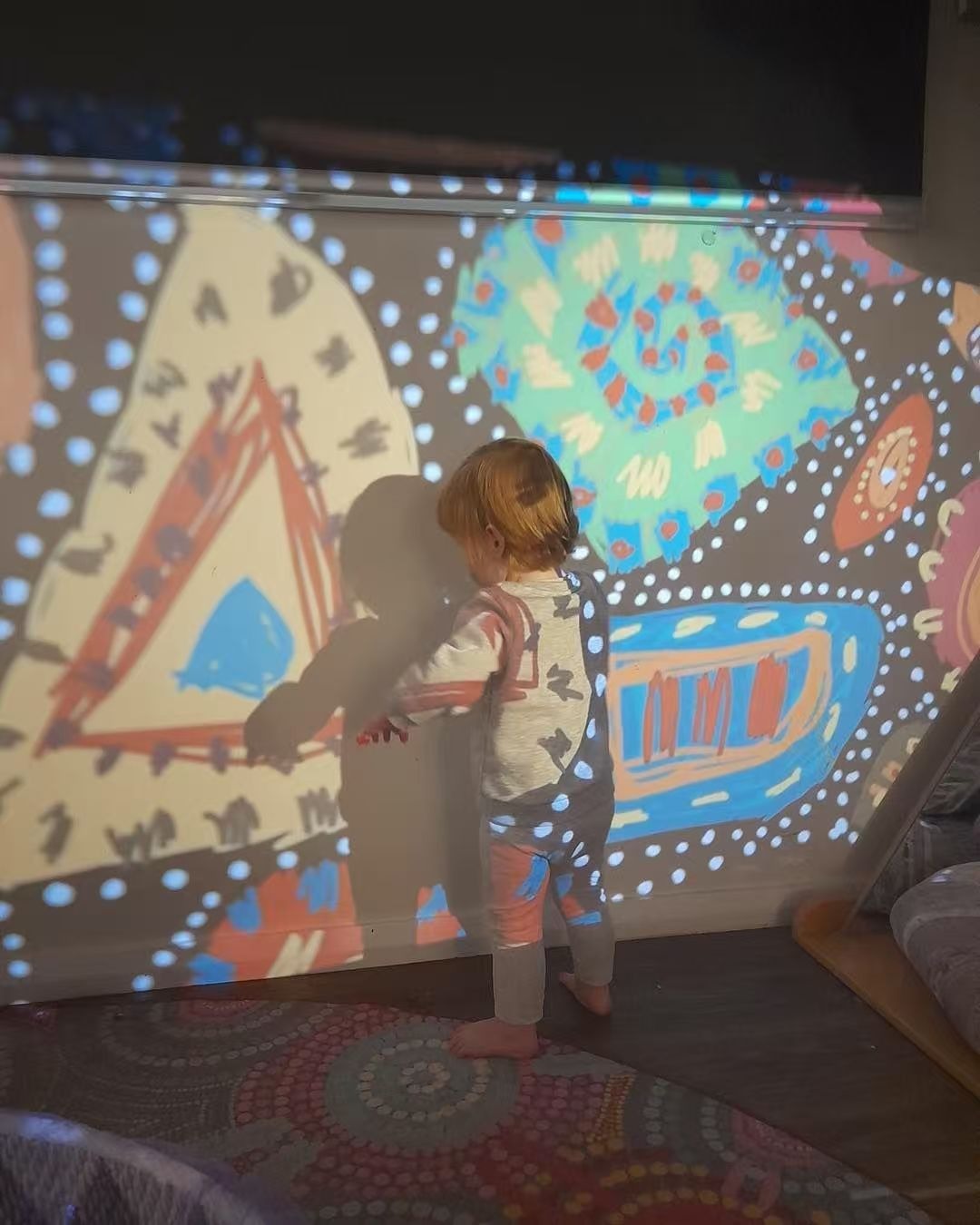
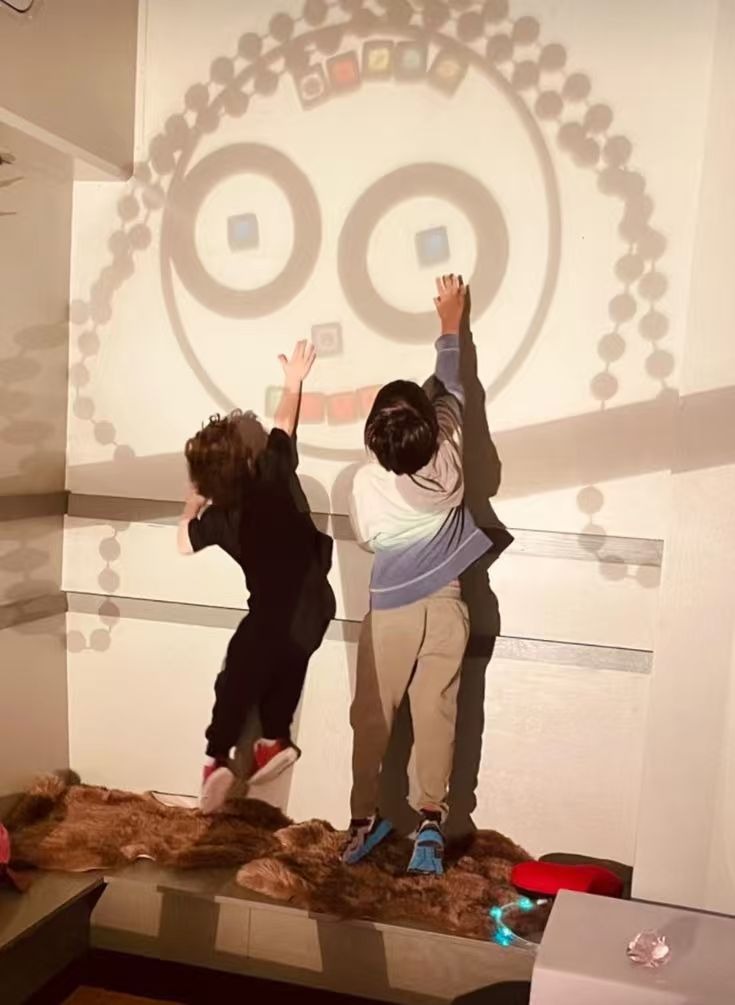
Draw in the Air — This webcam-based app is designed for ages 3–7. Children wave to begin, pinch to draw and open their hand to pause. It gave us a reason to compare how easy a pinch and a closed fist are to repeat. Photo from the product website. Tovertafel — Tovertafel projects motion-responsive games onto a table or floor. The installation manual specifies 110–140 cm above a table or 205–235 cm above a floor, measured to the projection surface. Photo from Tover’s inclusive education page. Standing heights, ages 3–10 — The final presentation shows a roughly 20 cm increase in mean standing height from ages three to six. I used the data as a starting point for researching the physical setup. Projection at child scale — A nearby user can cast a shadow over the projected image. Reference photo supplied by Sunny Yao. Reaching toward projected elements — Projected features at different heights change where children need to reach. Reference photo supplied by Sunny Yao.

Draw in the Air · Tovertafel for Inclusive Education


Project 2 Prototype

Shared team video of the Kinect gesture-drawing test, from Sunny Yao’s project documentation.


Key Findings

The Arduino tests established a working serial connection and gave me a way to check the controls before testing both actions with live drawing.
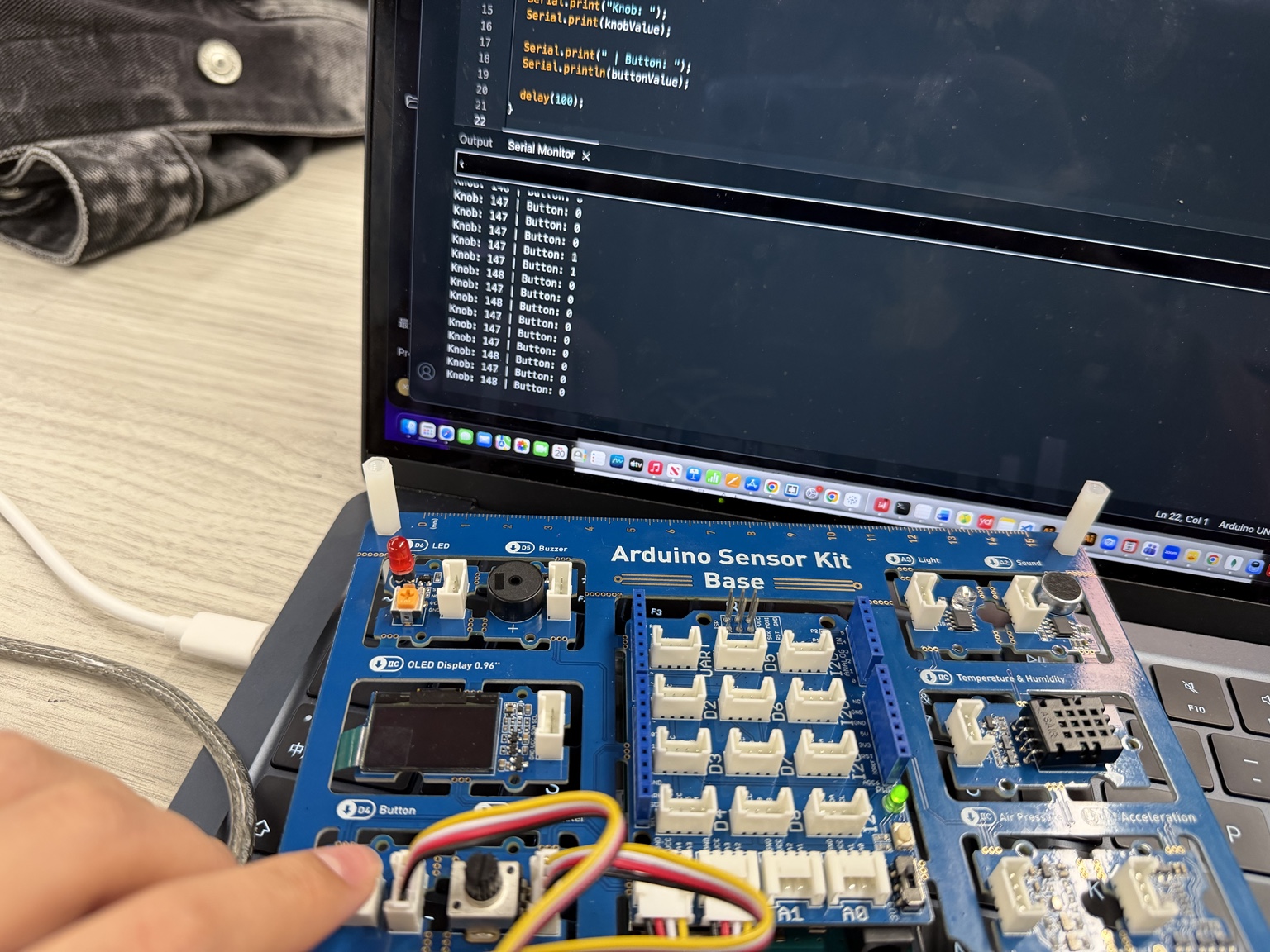
Check wiring first — A0 is the knob input and D4 is the button input in the corrected setup. Verify the button state — The raw button state switches between 0 and 1. It can be tested independently of the Kinect. Set useful brush limits — I set the Brush Radius control to a range of 2–22. The later square mapping makes changes more gradual at the thin end. Verify serial before testing effects — The incoming serial rows prove the connection. In Activity 2, I also saw the brush-size value change and the reset signal appear. Verify against the live canvas — The drawing component exposes Brush Radius and Clear Canvas. Actual stroke resizing and clearing during live Kinect drawing were still unverified.
×